If you have access to our Members Tab on your admin portal, you can add, edit or remove individual members directly in the portal: https://admin.myclearhead.com/
* Please note this is feature is currently only supported for those that use email or ID list verification, and not those that verify their staff using their email domain. If you use email domain verification and wish to remove users, please contact us at support@myclearhead.com
If you want to add members in bulk, please see this FAQ.
---
Here’s how:
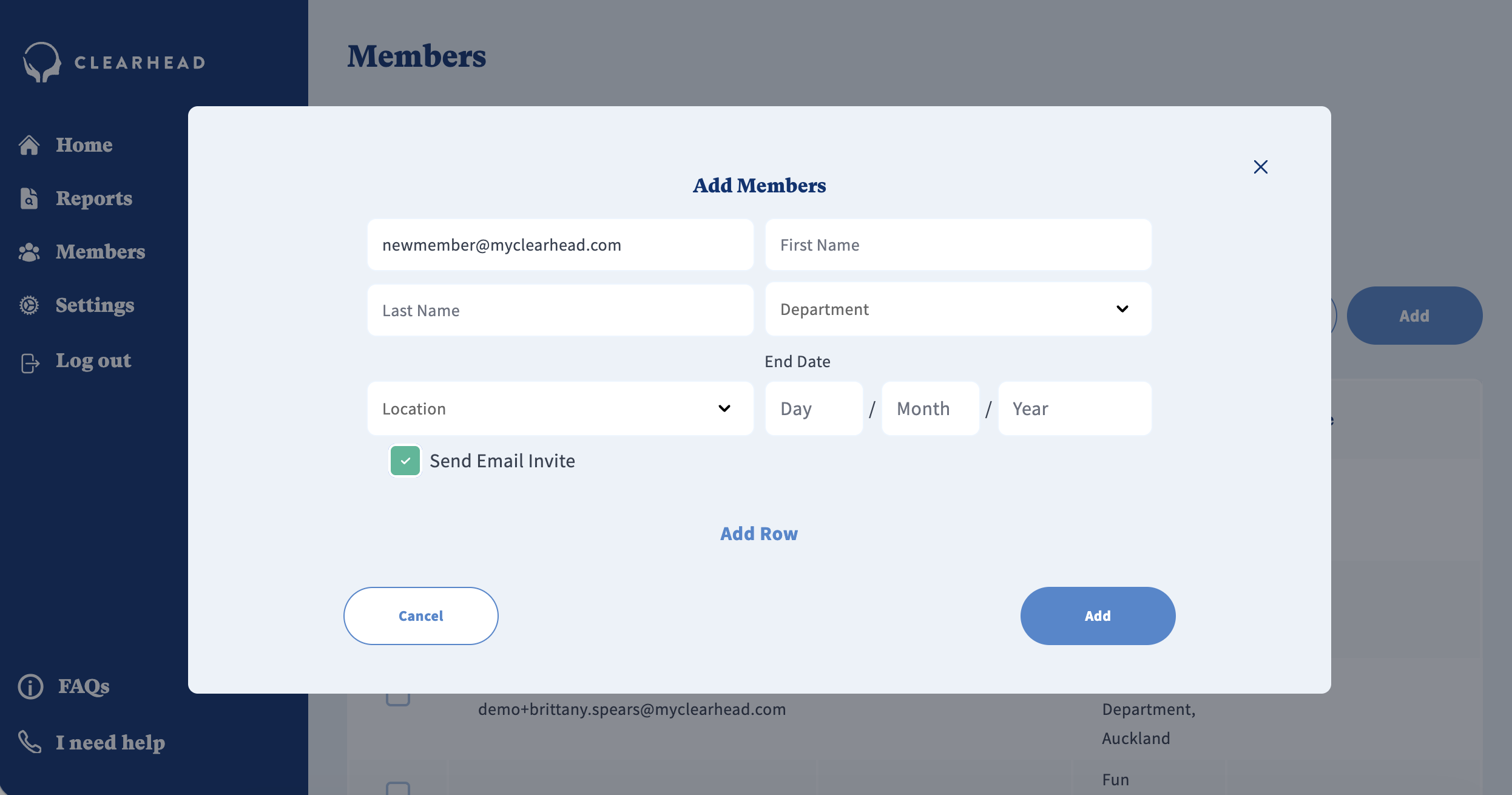
Add a Member
Go to the ‘Members’ tab.
Click the ‘Add’ button.
Enter the member’s unique ID – ideally their work email address.
Click ‘Save’.
When you add a new member, you can choose to have Clearhead send them an email invite if their email is in the portal. This email will welcome them to Clearhead and invite them so sign up. To view a sample of this email - click here.
Edit a Member
In the ‘Members’ tab, find the member you want to edit.
Select ‘Edit’ on the right-hand side of that row.
Make the necessary changes and click ‘Save’.
Remove a Member
In the ‘Members’ tab, locate the member you want to remove.
Select ‘Delete’ on the right-hand side of that row.
Confirm the action.
⚠ Removing a member will revoke their access to the platform.
Set an End Date in Advance
In the 'Members' tab, find the member you want to set an end date for.
Select 'Edit' on the right hand side of that row.
Enter an end date for that member.
Confirm the action. Once the end date is reached, employees who have not yet activated their Clearhead account will no longer be able to do so. Employees with an existing account will be moved to a freemium version of Clearhead. If they have already commenced therapy prior to the end date, they will be able to continue accessing their remaining funded therapy sessions.
Was this article helpful?
That’s Great!
Thank you for your feedback
Sorry! We couldn't be helpful
Thank you for your feedback
Feedback sent
We appreciate your effort and will try to fix the article