Register for the Clearhead EAP program
- Ensure that you are on the correct Employment Hero plan that includes EAP support, you can check this by contacting the Employment Hero team: https://employmenthero.com/nz/support/.
- If you are on the right plan, complete this form https://myclearhead.typeform.com/employmenthero
- Once you have completed this form, you will receive an automated email from us.
- This automated email will provide you the link to login into your HR clearhead portal with your login details. It will require you to reset your password after you have entered the auto-generated password. If you didn't receive this email, please check your junk email, alternatively if you still haven't received it after 10 minutes, please ensure myclearhead.com is whitelisted in your organisations spam filter.
Connect to Employment Hero
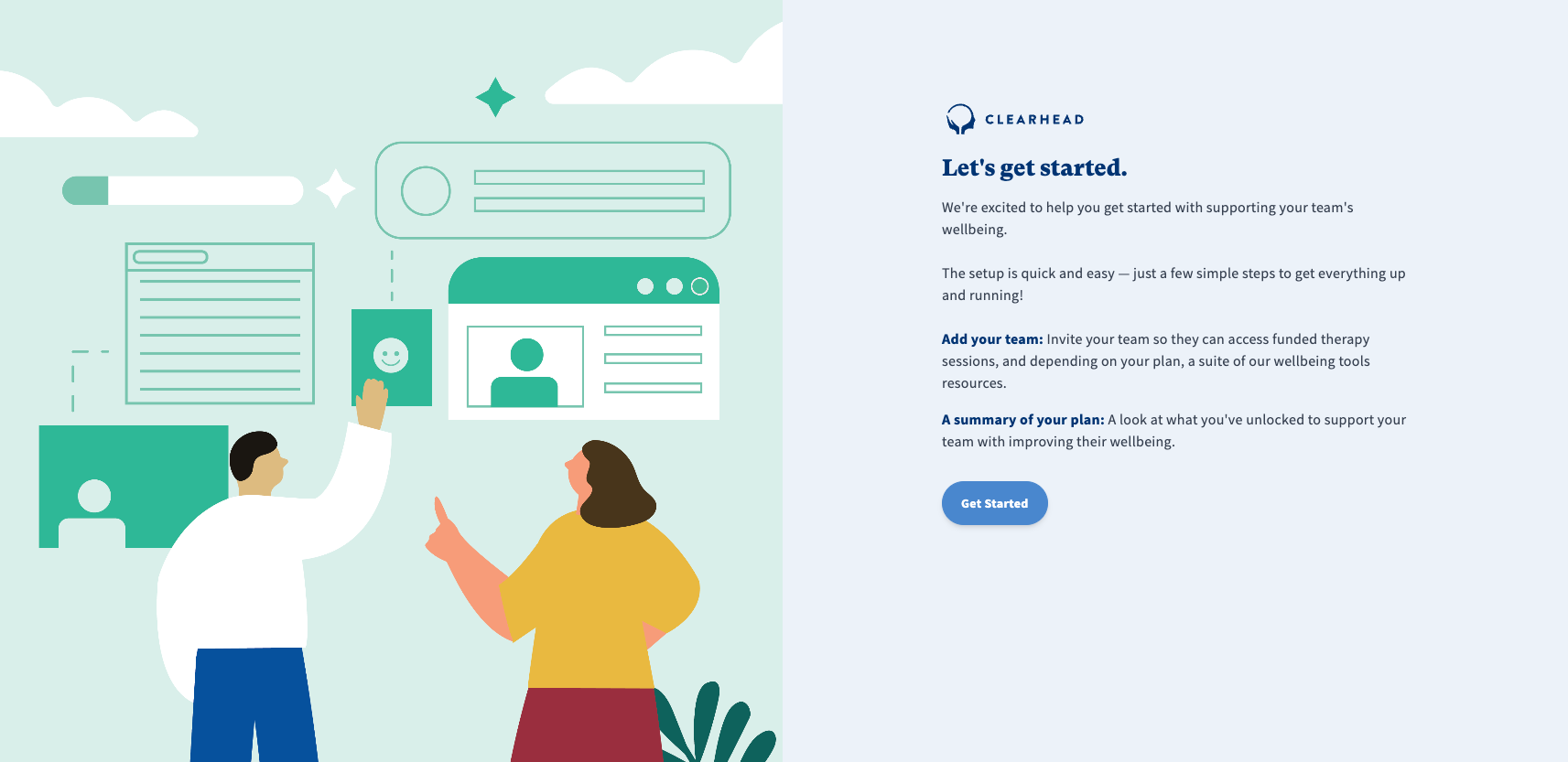
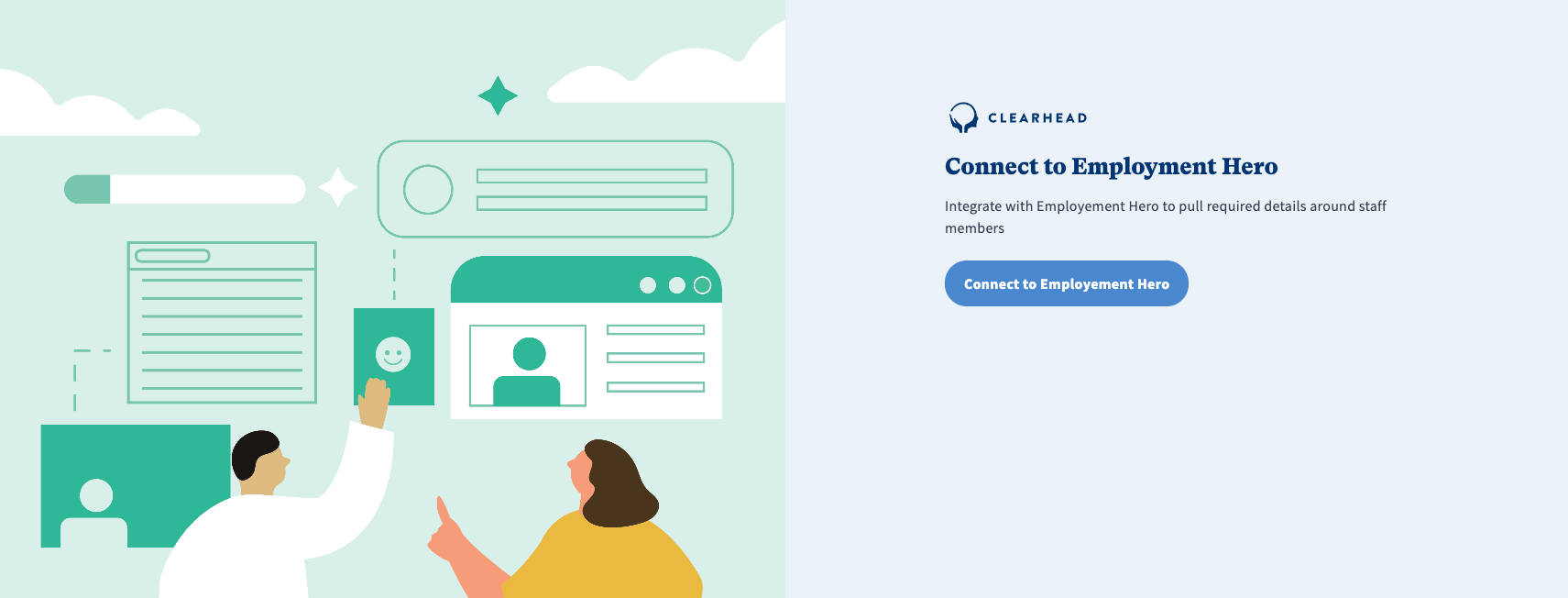
During onboarding, you’ll be prompted to connect to Employment Hero.
Here’s how it works:
When setting up Clearhead for the first time, one of the easiest ways to get started is by connecting your existing HR system. If your organisation uses Employment Hero and you've joined via our partner program, you can securely sync your employee list in just a few steps.
If your Employment Hero account includes international staff (outside of New Zealand), connecting will sync all staff on your Employment Hero plan into Clearhead — even if they are not intended to access the service.
In this case, we will assume that you are offering Clearhead to all your employees and the Welcome to Clearhead email will be sent to all your employees.
If this is a concern for your organisation, please reach out to us before completing this step. Contact Employment Hero: https://employmenthero.com/nz/support/
Getting Started
Connect to Employment Hero.
During onboarding, you’ll be prompted to connect to Employment Hero. Here’s how it works:
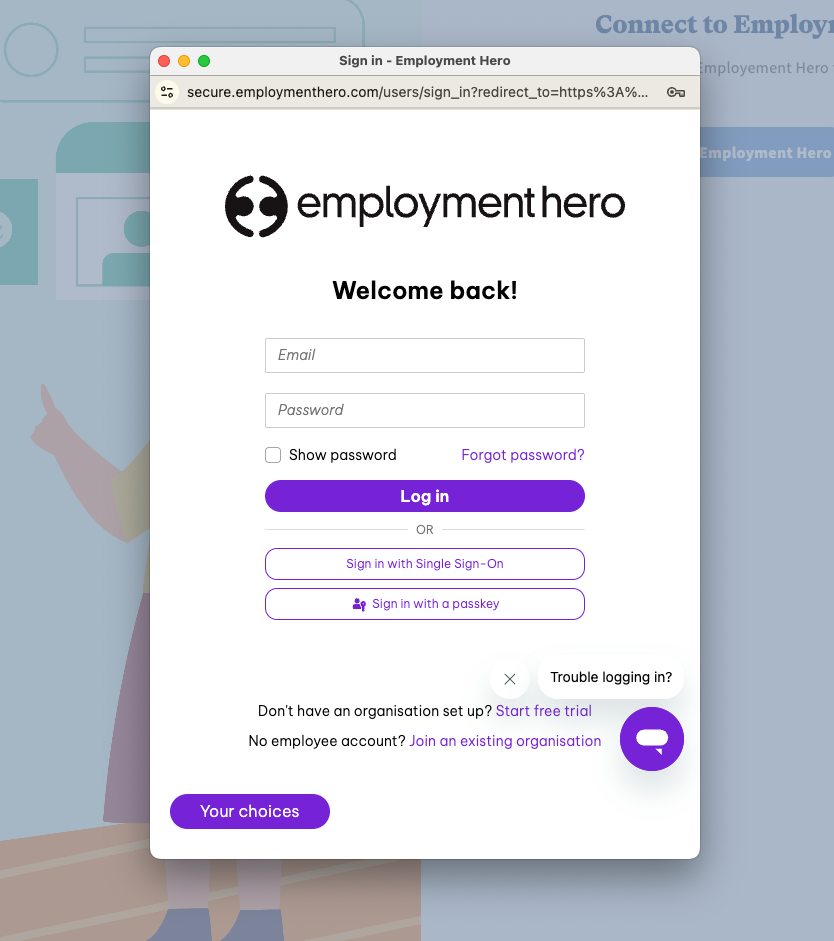
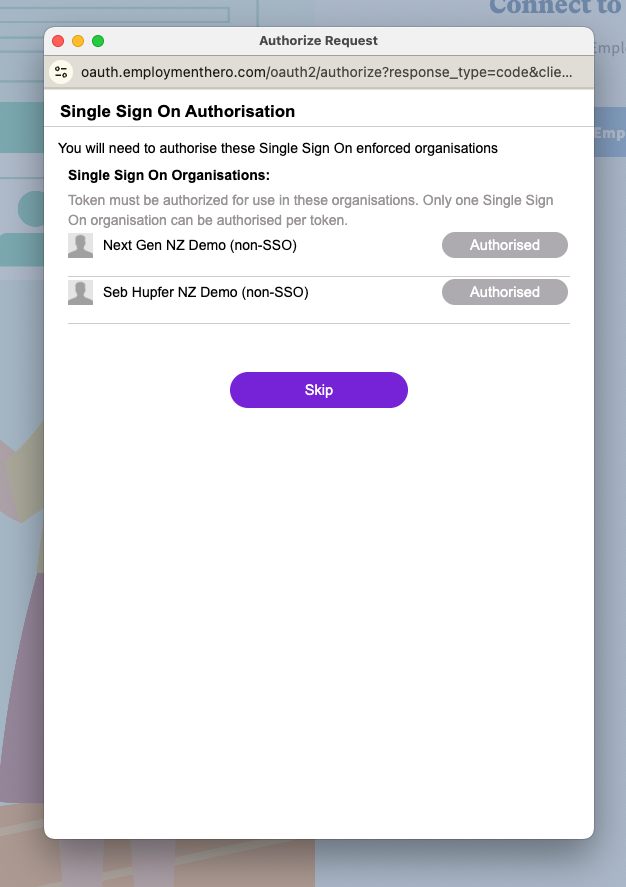
Log in to Employment Hero
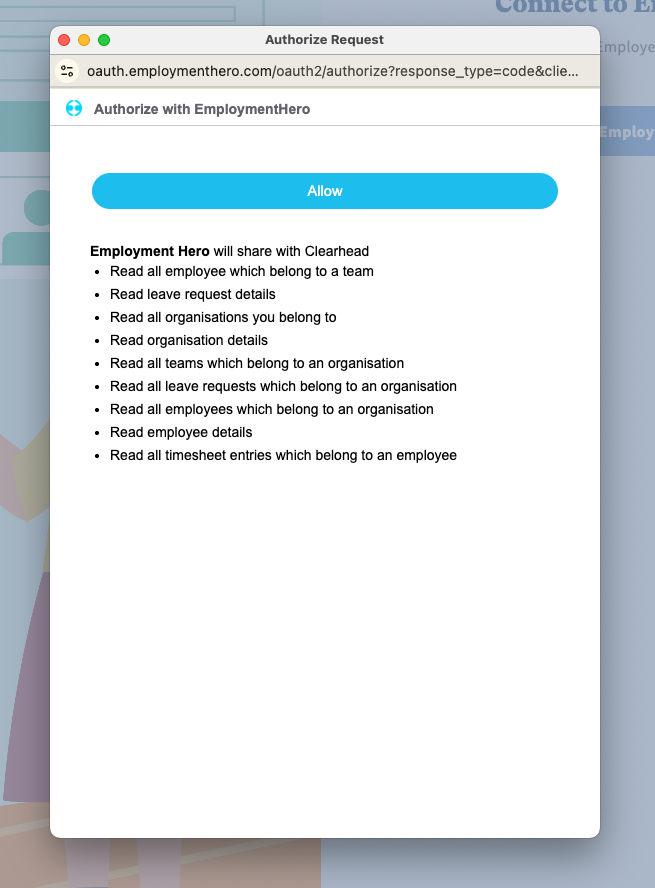
A secure pop-up will appear asking you to log in to your Employment Hero account.
Follow the prompts to authorize access.
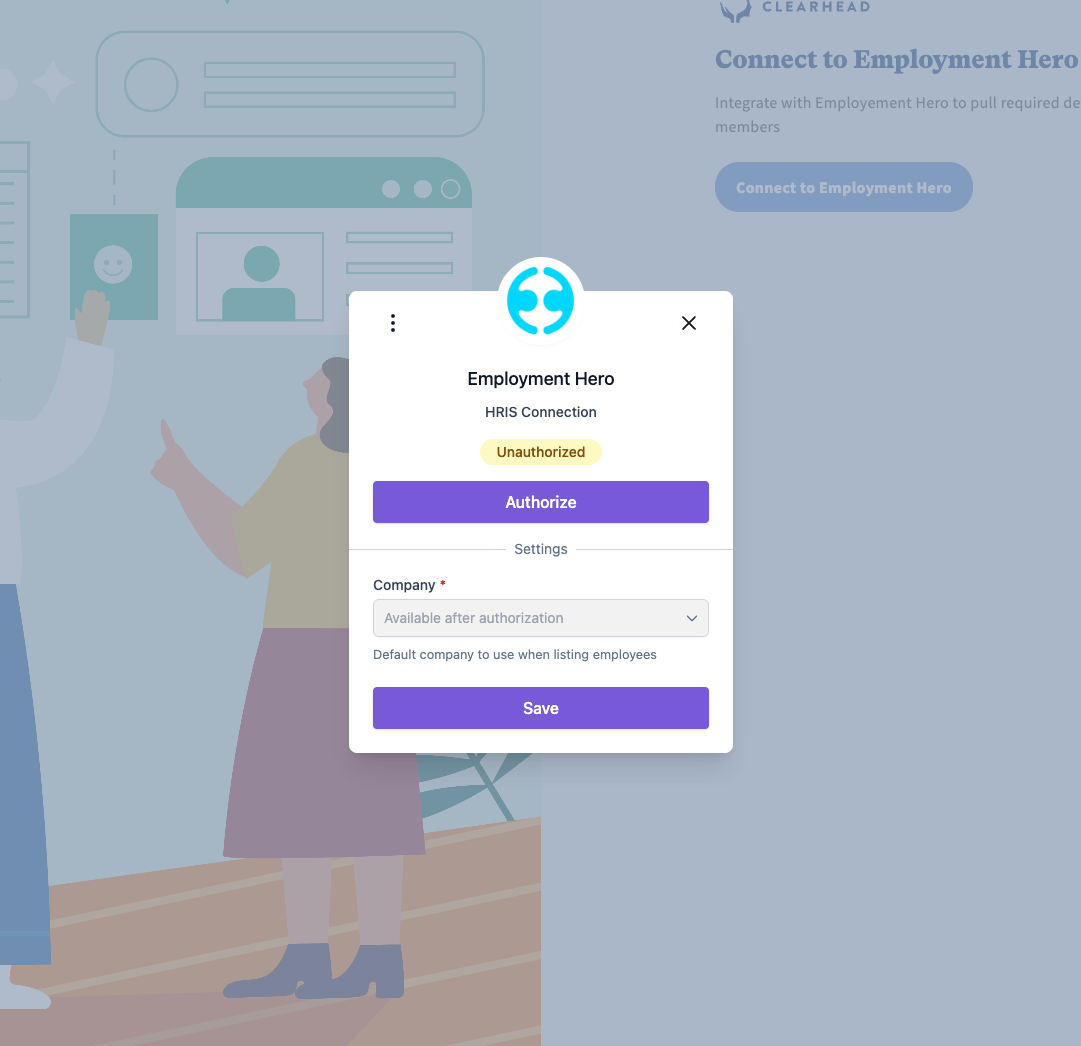
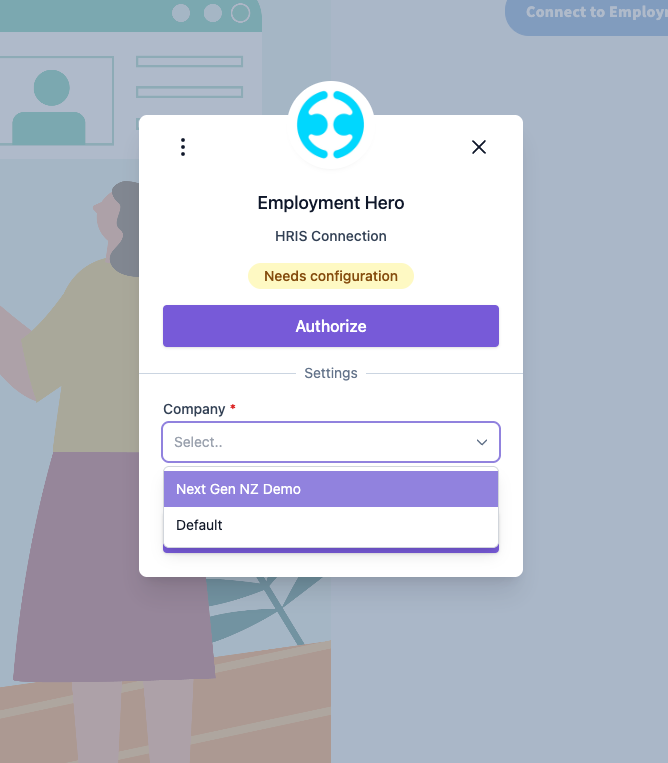
Select Your Company
Once logged in, you’ll be shown a dropdown to select your company name.
Click ‘Authorize’ again to confirm.
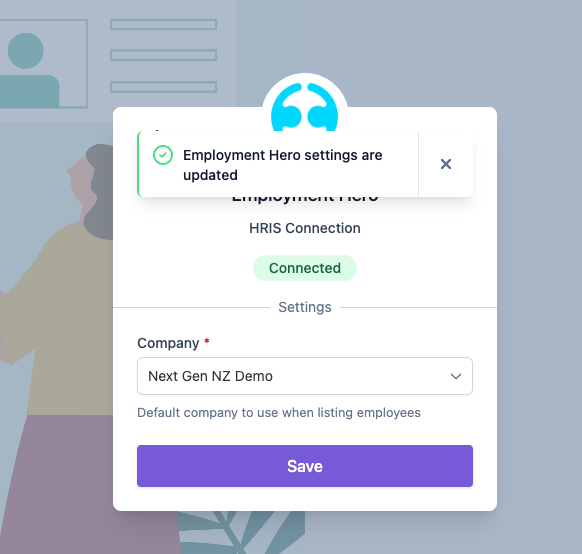
✅ This completes the sync and ensures your employee list is always up to date.
What next?
Once connected:
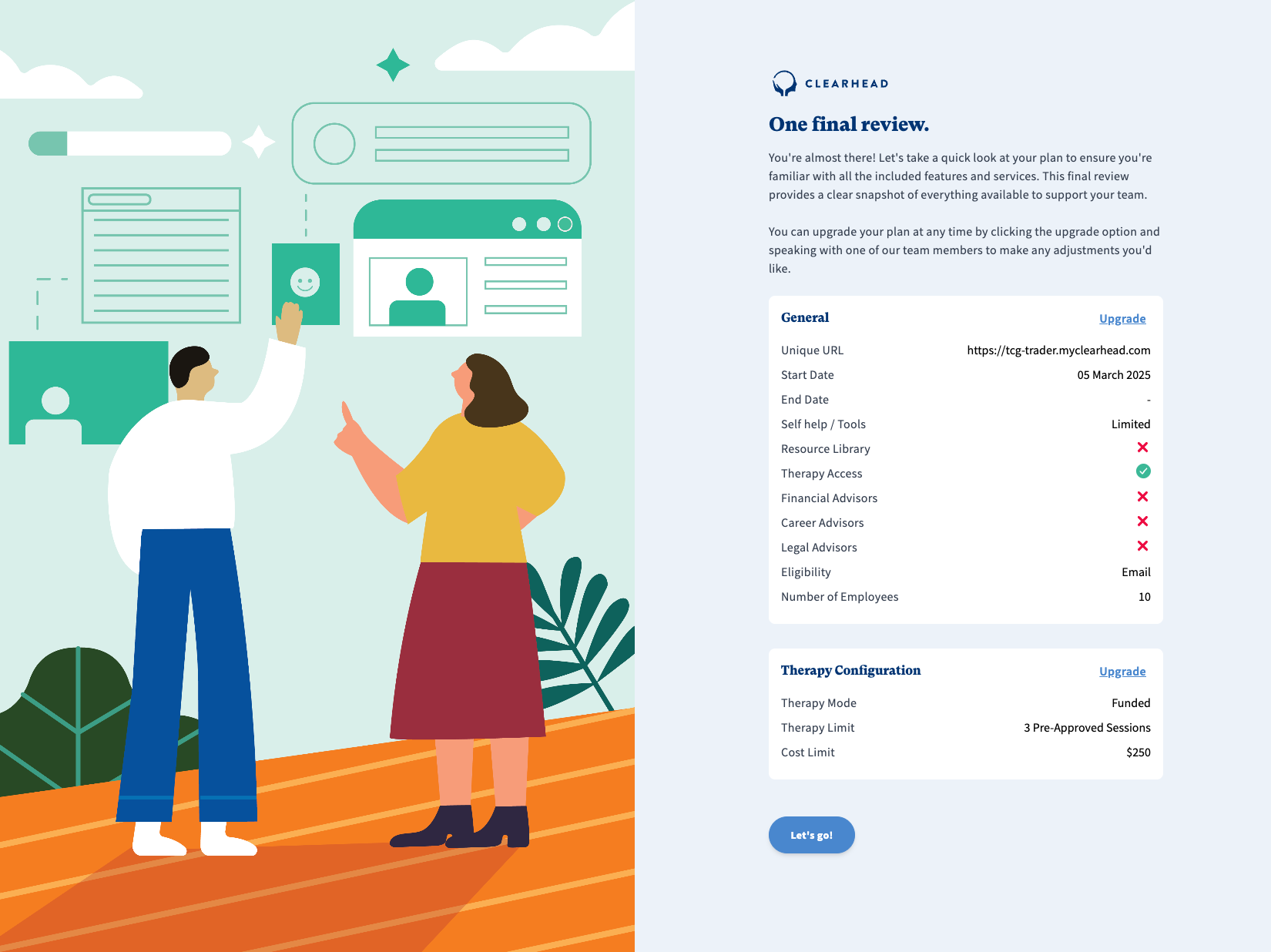
You’ll see a summary of your Clearhead plan with all included features.
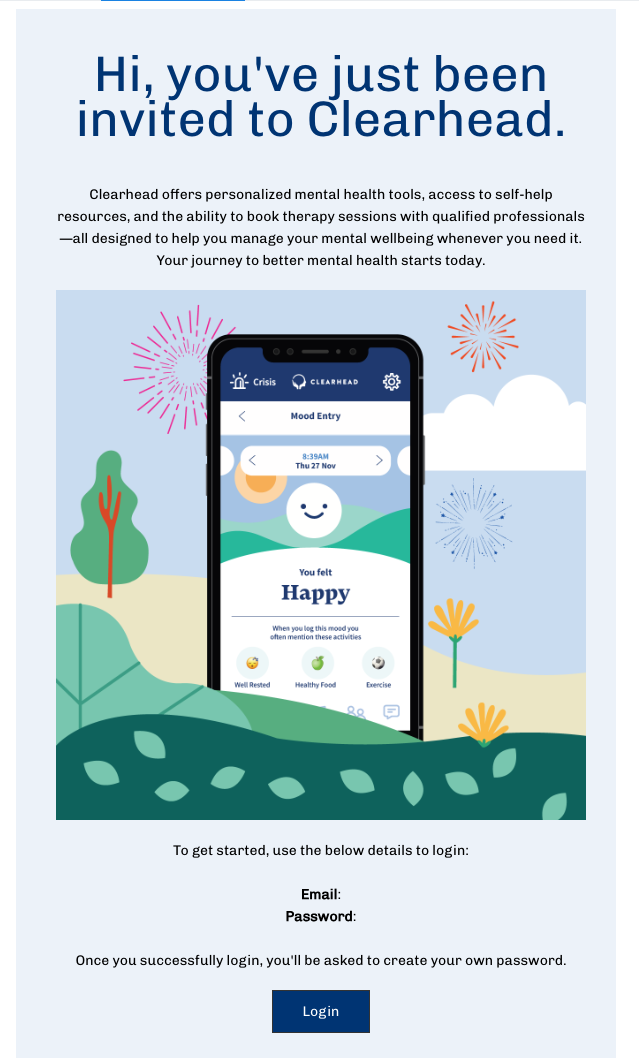
The members you sync will automatically get an invite email to use Clearhead and login to their account, we make it easy for them by generating a one time password that they have to update after they first login, here's what the email looks like:
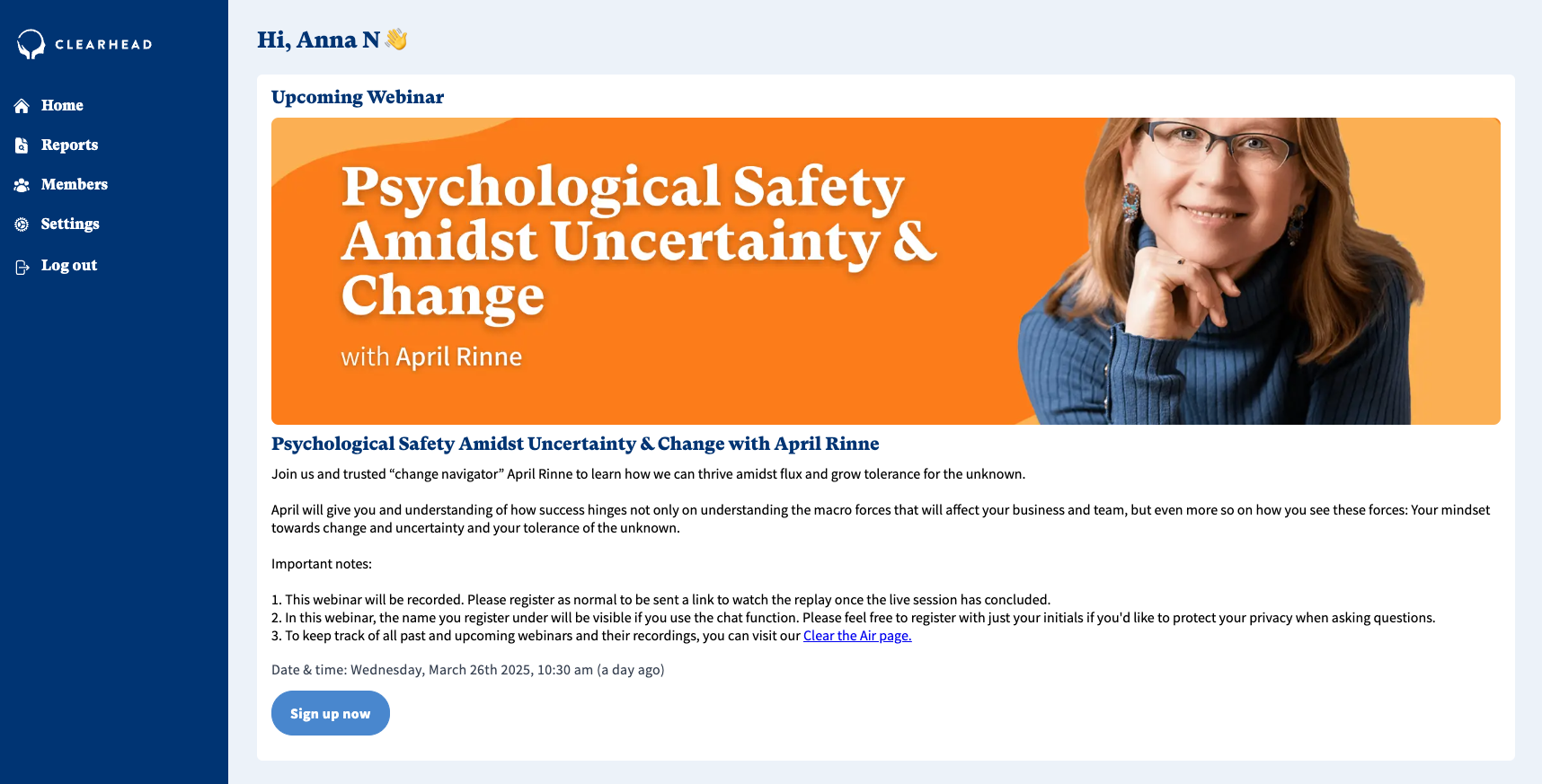
Once you've gone through setting up your account, you’ll then be taken to your HR home screen, where you can view your staff under the "Members" tab, viewing resources, and managing your organization’s wellbeing tools.
If you need to update or disconnect the integration later, you can do this anytime from the Integrations section in your admin portal OR contact us: contact@myclearhead.com.
Troubleshooting
If your staff staff did not receive any invite emails within 48 hours after being synced / added to the list of members, please whitelist our email domain: myclearhead.com, check with your IT team on how to do this or contact us for support contact@myclearhead.com.
Was this article helpful?
That’s Great!
Thank you for your feedback
Sorry! We couldn't be helpful
Thank you for your feedback
Feedback sent
We appreciate your effort and will try to fix the article